Search for a term or choose one of the tasks below.
No results. Try a shorter or different term.
01
Basics
Quick start
1
Browse
A Barangolás korszakok, évtizedek, évek és sorozatok szerint vezet végig a magyar bélyegeken.
2
Search precisely
Az Smart Searchben szövegre kereshetsz, or a találatokat több szempont szerint szűkítheted. A két lehetőség egymástól függetlenül is használható.
3
Open the stamp page
Click a stamp image or title to view its details, variants and community features.
TipThe top search is available from most pages. You can search by catalogue number, title and other stamp data.
02
Explore chronologically
Using Browse
A Barangolás akkor hasznos, ha nem egy konkrét bélyeget keresel, hanem időrendben szeretnéd felfedezni a kiadásokat. Itt nem kell keresőkifejezést or szűrőt megadnod.
Period→Decade or year→Series→Stamp page
1. Choose a period. The dates and the numbers of series and stamps help you choose.2. Chronological breakdown. Depending on the period, decades, years or series are shown.3. Series page. Click the desired stamp image or title to open its page.
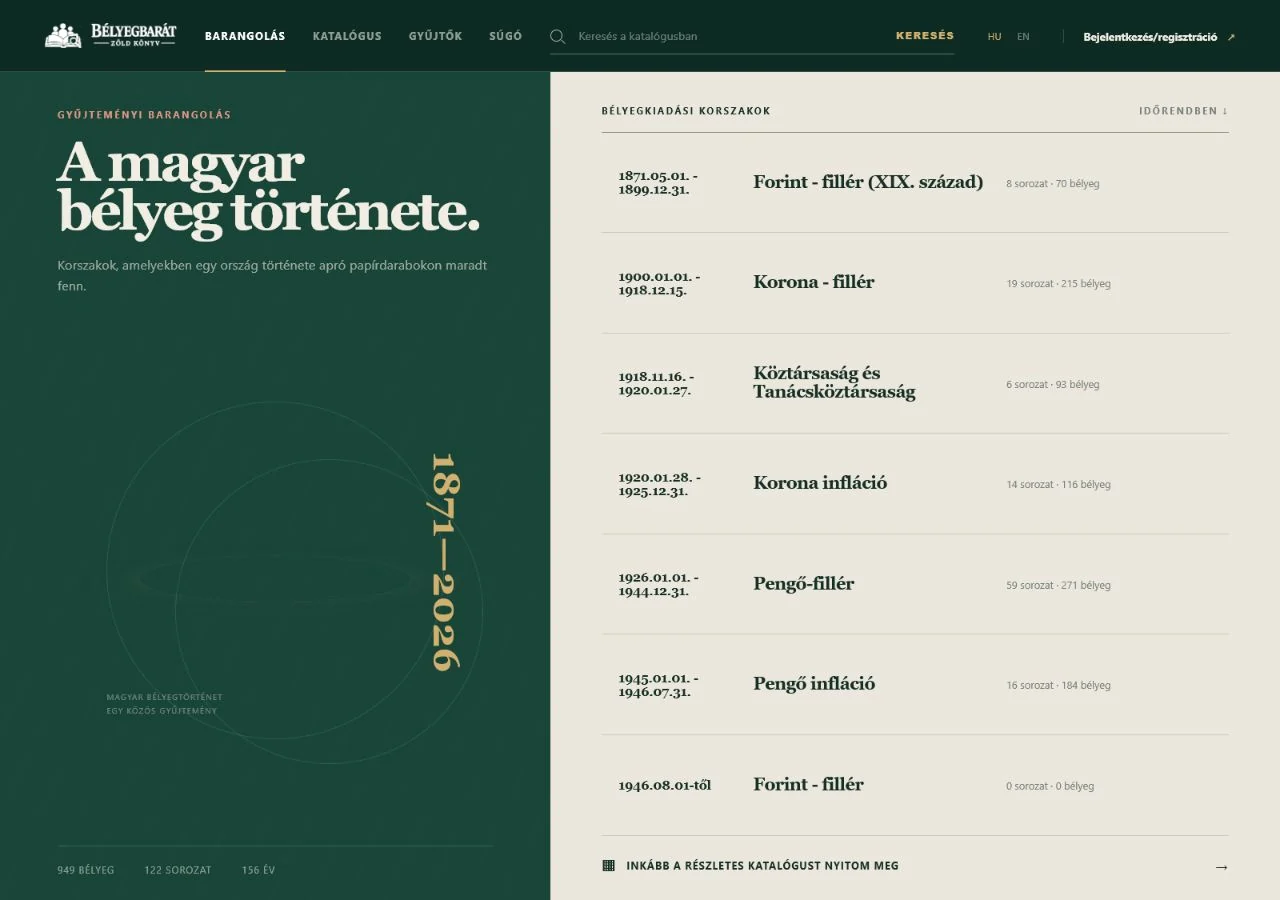
Choose a period. The Browse homepage lists stamp-issuing periods chronologically, together with their numbers of series and stamps.
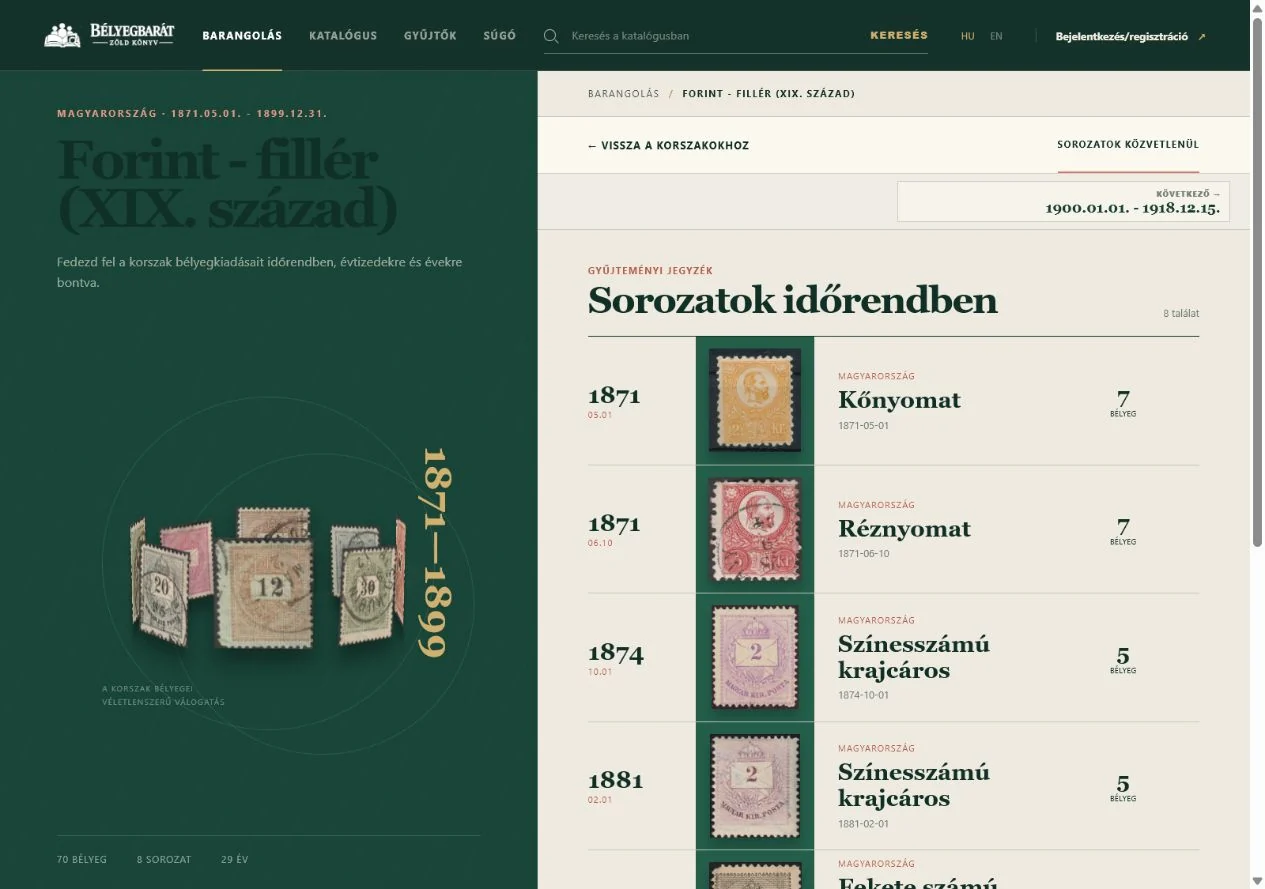
Continue through time. Depending on the selected period, you will see decades, years or series. In decade view, choose a decade and then a year.
Open a year. The year page lists the series issued that year and their stamp counts chronologically.
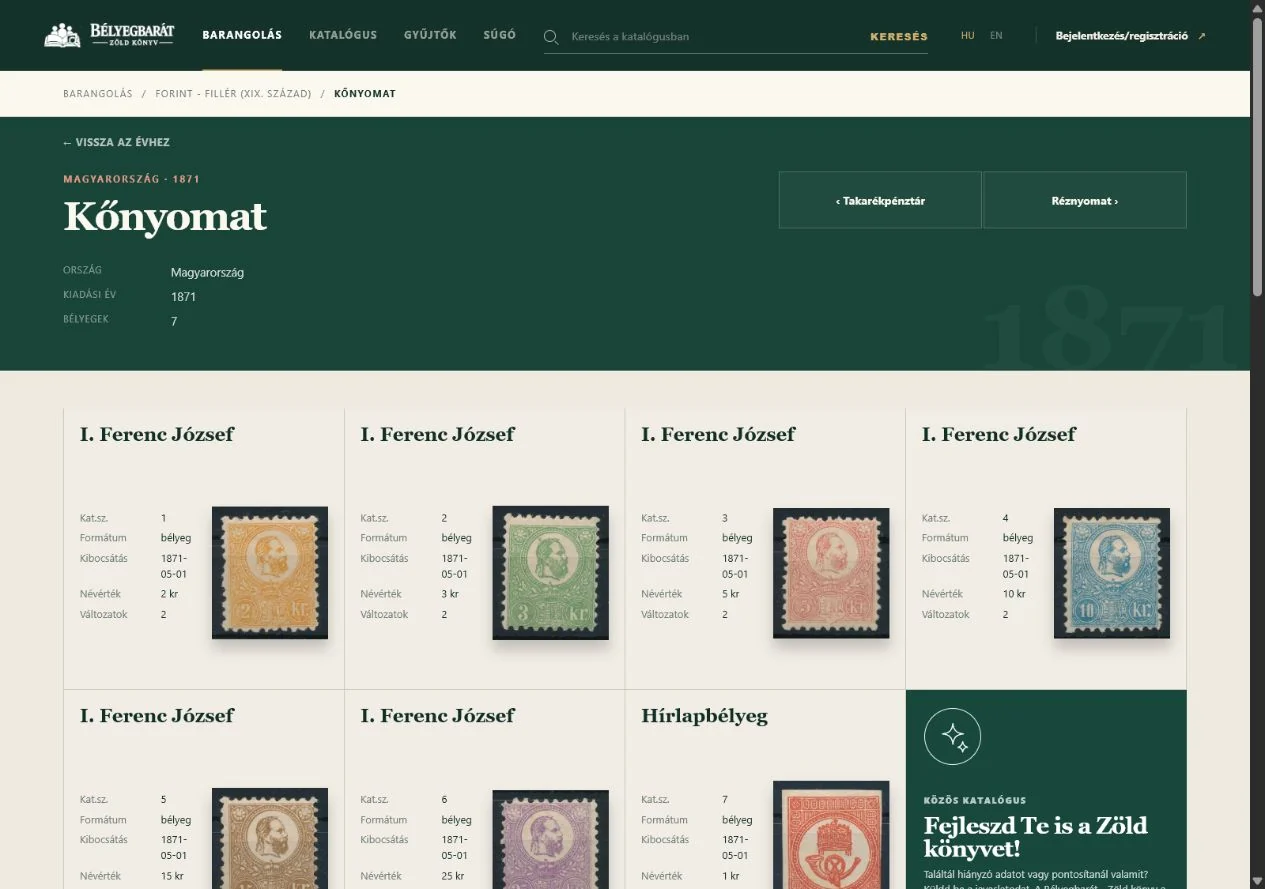
Choose a series. The series page shows its stamps, variants, values and related information together.
Open the desired stamp. Click the image or title to open the detailed stamp page.
Going back
Use the breadcrumbs and Back links to return to the previous year, decade or period.
Another approach
Ha már tudod, mit keresel, válts az Smart Searchre. Ott keresés és részletes szűrés áll rendelkezésedre.
03
Targeted search
Smart Search
▱ On desktop
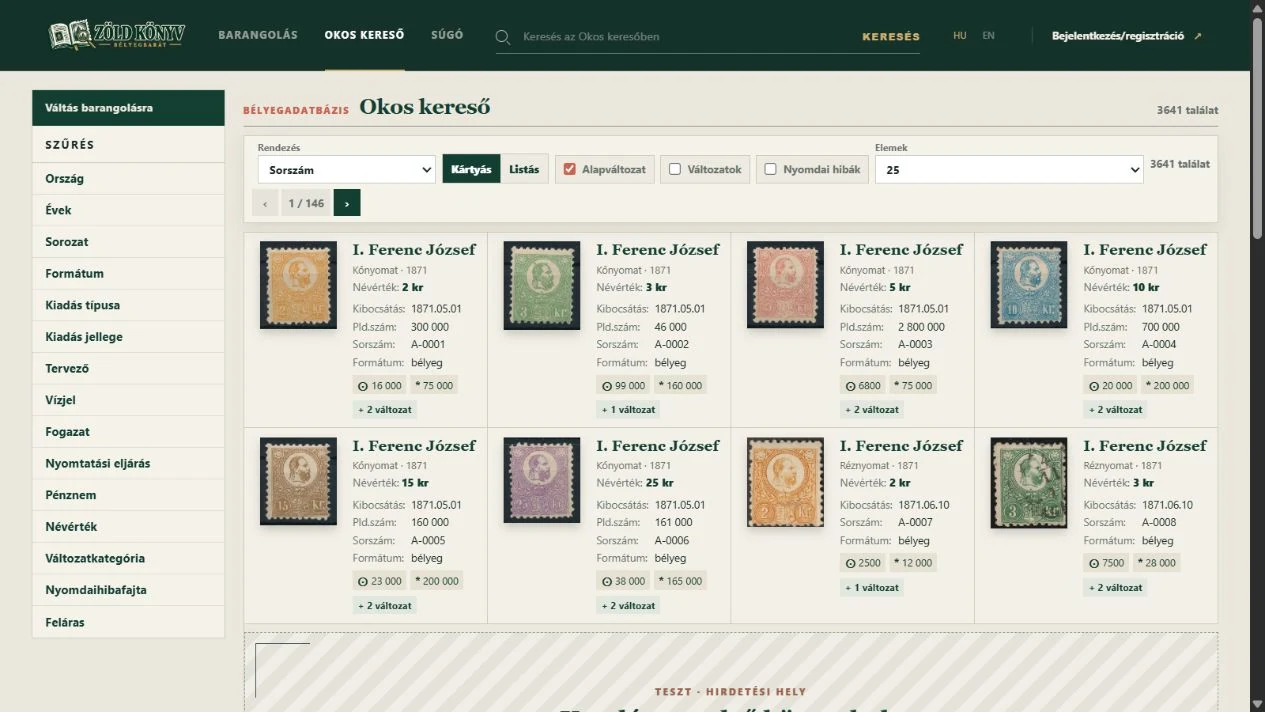
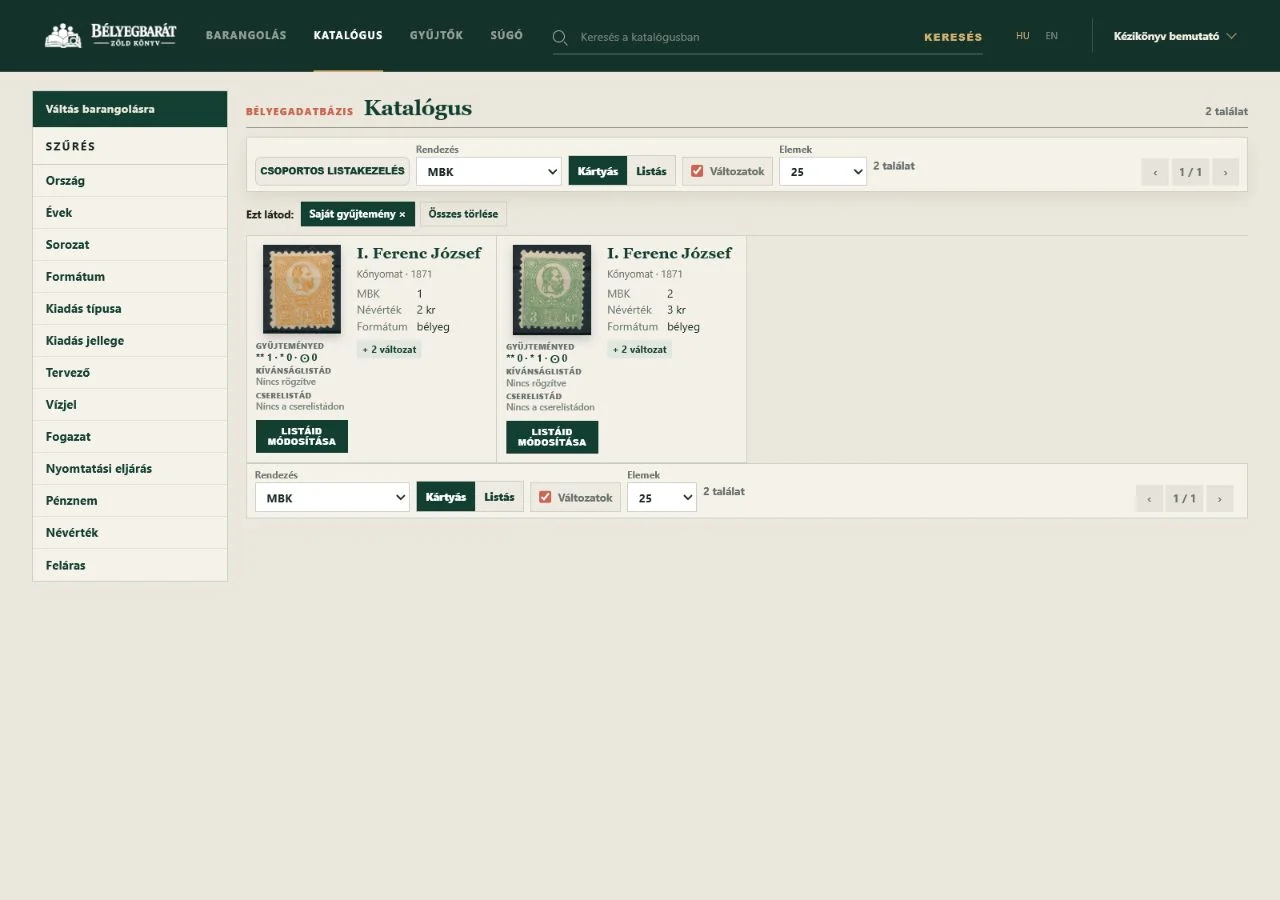
Filters are on the left; sorting and view controls are above the results.
Enter what you are looking for. Use the top search or open Smart Search directly.
Narrow the results. Use the left sidebar to filter by country, year, series, designer, watermark or perforation.
Choose sorting and view. These controls are above the results.
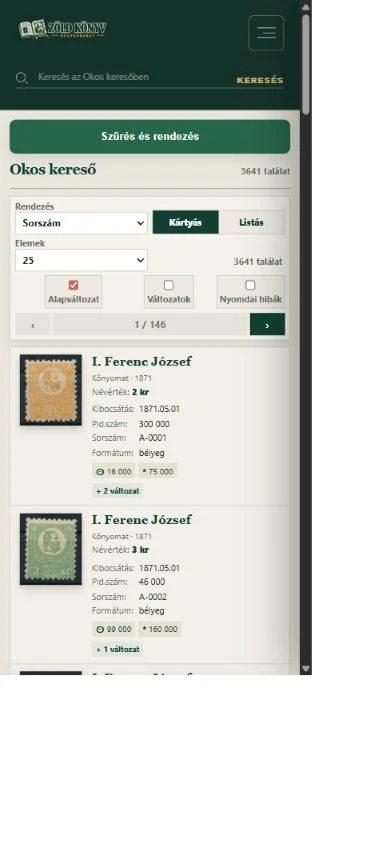
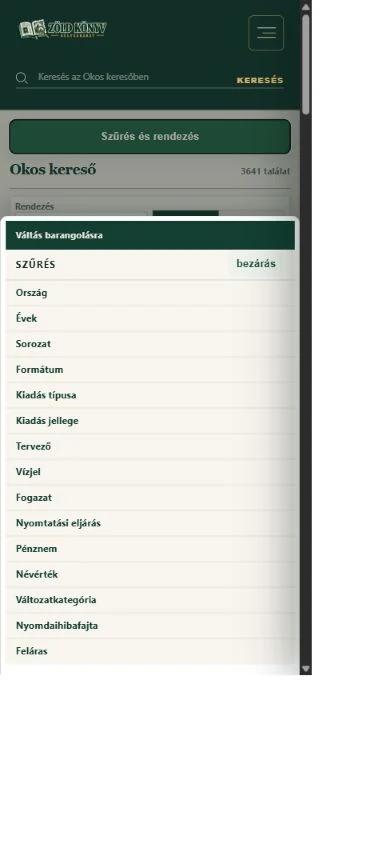
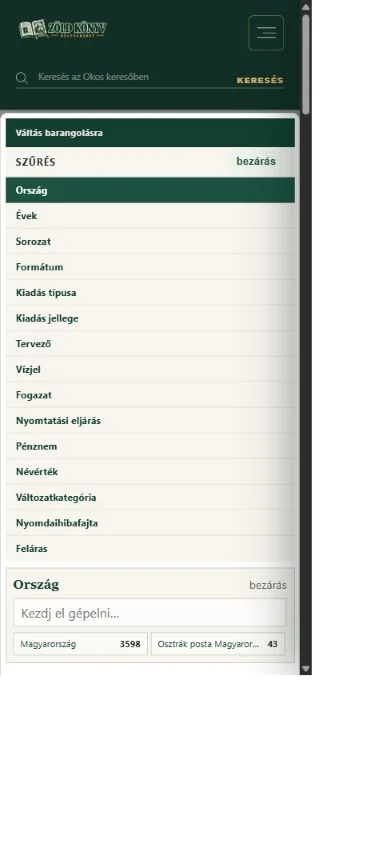
▯ On mobile
1. Érintsd meg a Filter and sort gombot.2. Válaszd az Years szűrőt.3. Válaszd ki a kívánt évet; a találati lista ezután frissül.
Mobile tipAz aktív szűrők száma megjelenik a Filter and sort gombon. Ugyanitt tudsz újabb szűrőt hozzáadni or egy meglévőt törölni.
On every device
A Változatok kapcsolóval az alapbélyegek mellett a változatokat is külön találatként láthatod. A kártyás nézet képes áttekintést, a listás nézet sűrűbb összehasonlítást ad.
04
Details
Using a stamp page
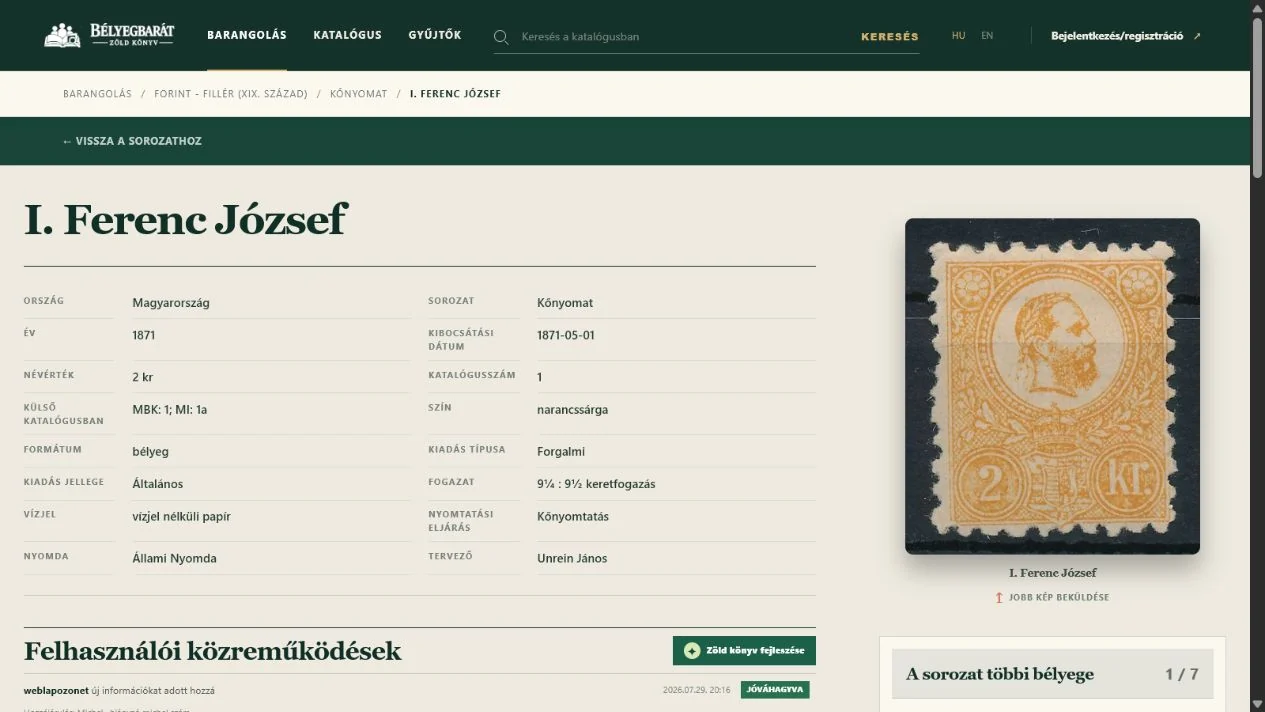
The stamp page brings together identification data and related variants.
Basic data
Here you can find the issue date, face value, catalogue numbers, colour, perforation, watermark and printing method.
Types and variants
Use the tabs to open different types, colour and other variants, and rarities.
Community features
When signed in, you can manage lists and submit images, corrections, variants, printing errors and philatelic curiosities.
05
Personal features
Account and personal lists
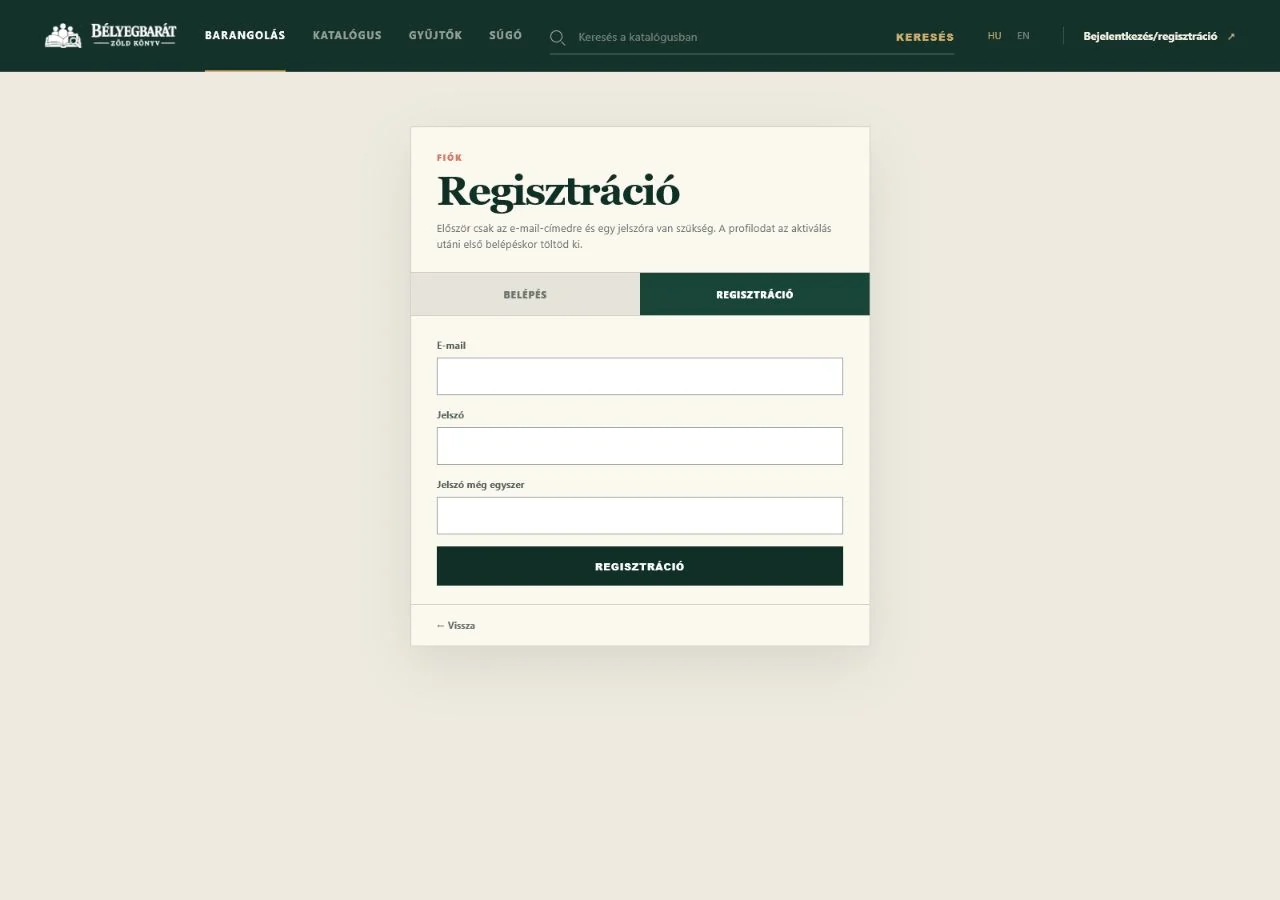
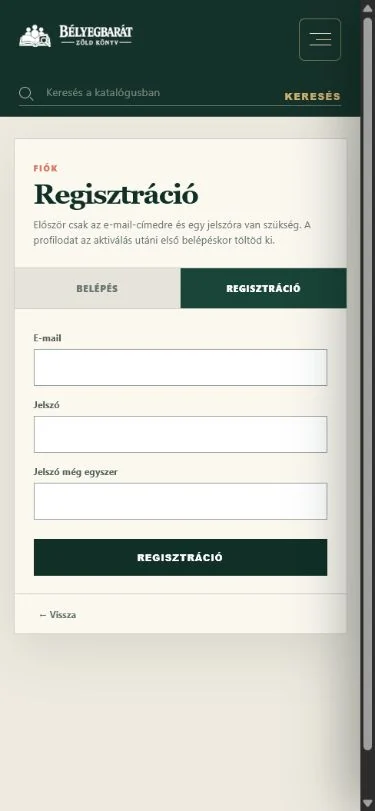
A regisztrációhoz első lépésben e-mail-cím és kétszer megadott jelszó szükséges.On mobile ugyanez az űrlap egyetlen, könnyen görgethető oszlopban jelenik meg.
Registration and sign-in
Kattints felül a Bejelentkezés/regisztráció hivatkozásra. A regisztrációhoz először e-mail-cím és jelszó szükséges; aktiválás után töltheted ki a profilodat.
Adding a stamp to a list
A katalógusban or az adatlapon válaszd a saját listák műveletét, majd add a tételt a gyűjteményedhez, kívánságlistádhoz or egy saját listához. Ha elérhető, megadhatod az állapotot és a darabszámot is.
Reviewing and editing lists
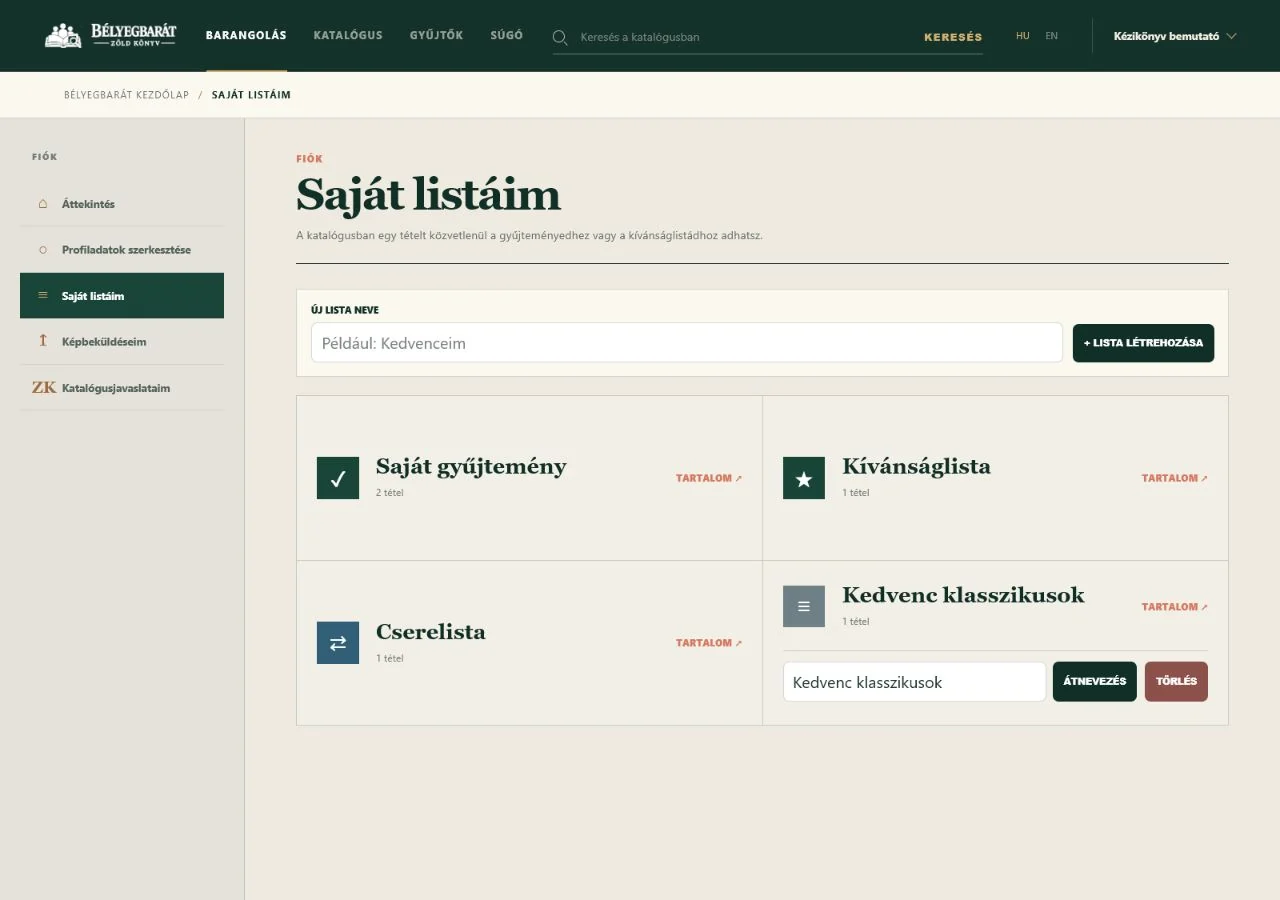
A felhasználói menüben nyisd meg a Saját listáim oldalt. Itt egy helyen kezelheted a korábban felvett tételeket.
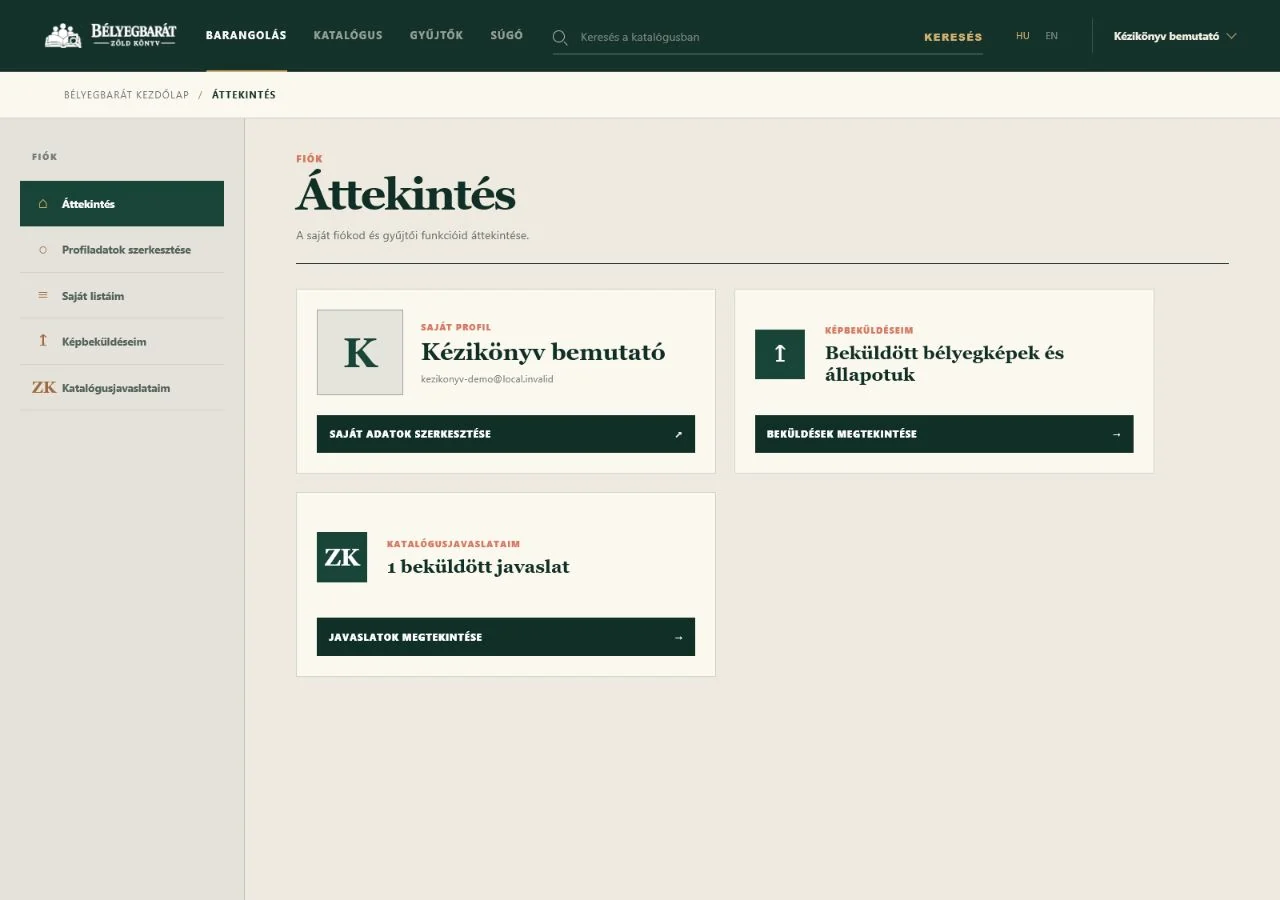
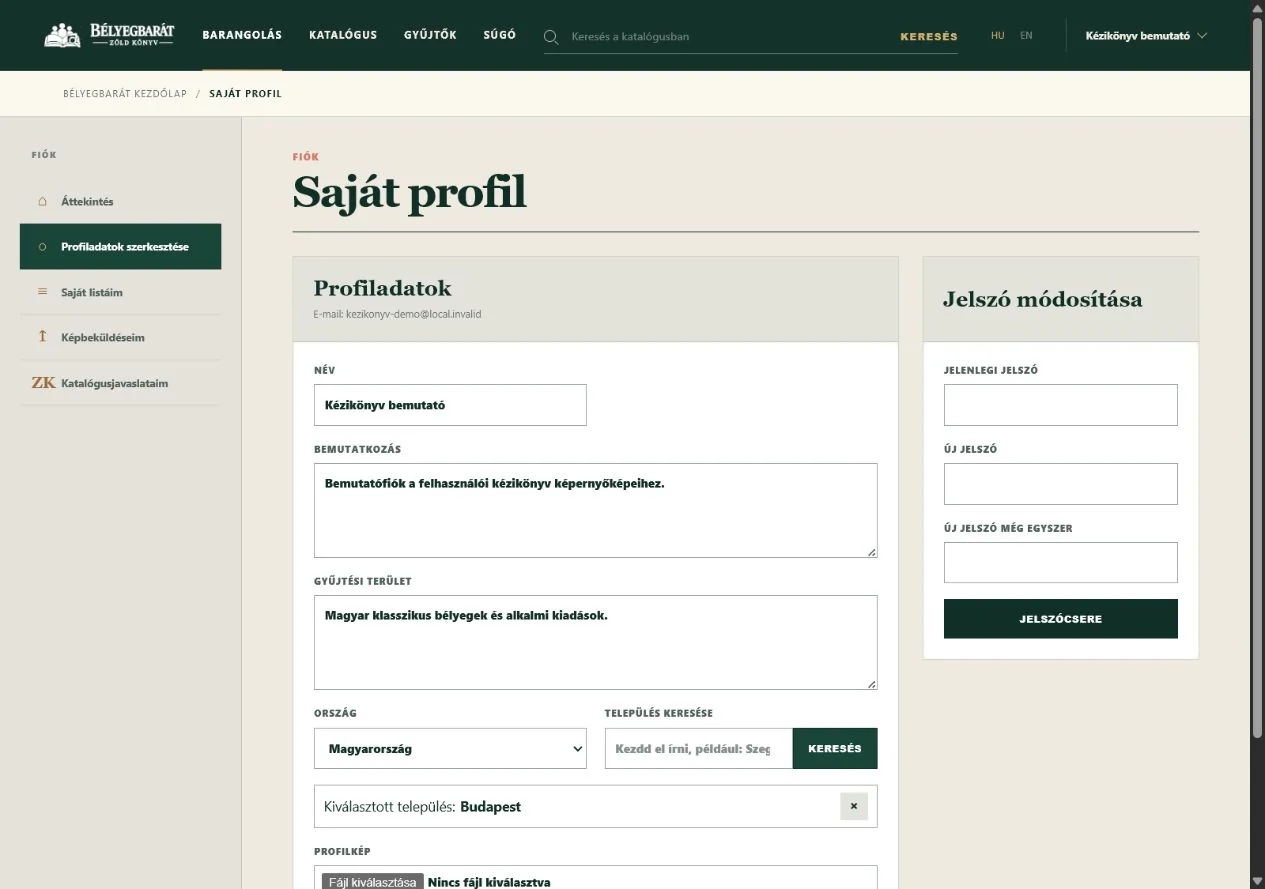
Fiókáttekintés. Innen éred el a profilodat, a képbeküldéseket, a katalógusjavaslatokat és a beküldött érdekességeket.Profilbeállítások. Bemutatkozás, gyűjtési terület, lakóhely, profilkép és jelszó kezelése.Saját listák. A három alaplista mellett saját nevű listákat is létrehozhatsz és kezelhetsz.Lista megnyitása. A kiválasztott lista tételei a katalógus megszokott kártyás or listás nézetében jelennek meg.
06
Community catalogue development
The unified contribution page
On series, stamp and variant pages, thez Share your knowledge and photos gomb nyitja meg az áttekintő beküldőfelületet. A bélyegképek gyors beküldéséhez külön Kép beküldése or Jobb kép beküldése gombot találsz az adatlap közösségi részén, illetve változatnál közvetlenül a kép alatt.
Share your knowledge and photos. Seriesoldalon a cím mellett találod a közösségi beküldőfelület gombját.
1
Upload a new image
Submit a better image for an existing base stamp, variant or printing error.
2
Correct existing data
Correct or complete existing catalogue data and point values.
3
Add a new item
Propose a previously unlisted variant or printing error, optionally with a photograph.
4
Present a curiosity
Share a cover, postal-history connection, mixed franking or another philatelic curiosity.
Starting from a series
Select the relevant stamp in the series, then its variant or printing error when necessary.
Starting from a stamp
The current stamp is preselected, but you can review or change the target before submitting.
Starting from a variant
The current variant is offered as the target, so you do not need to find it again.
Required fieldsOn the forms, an * marks required fields. You can check these before submitting.
07
Community catalogue development
Submit a new image
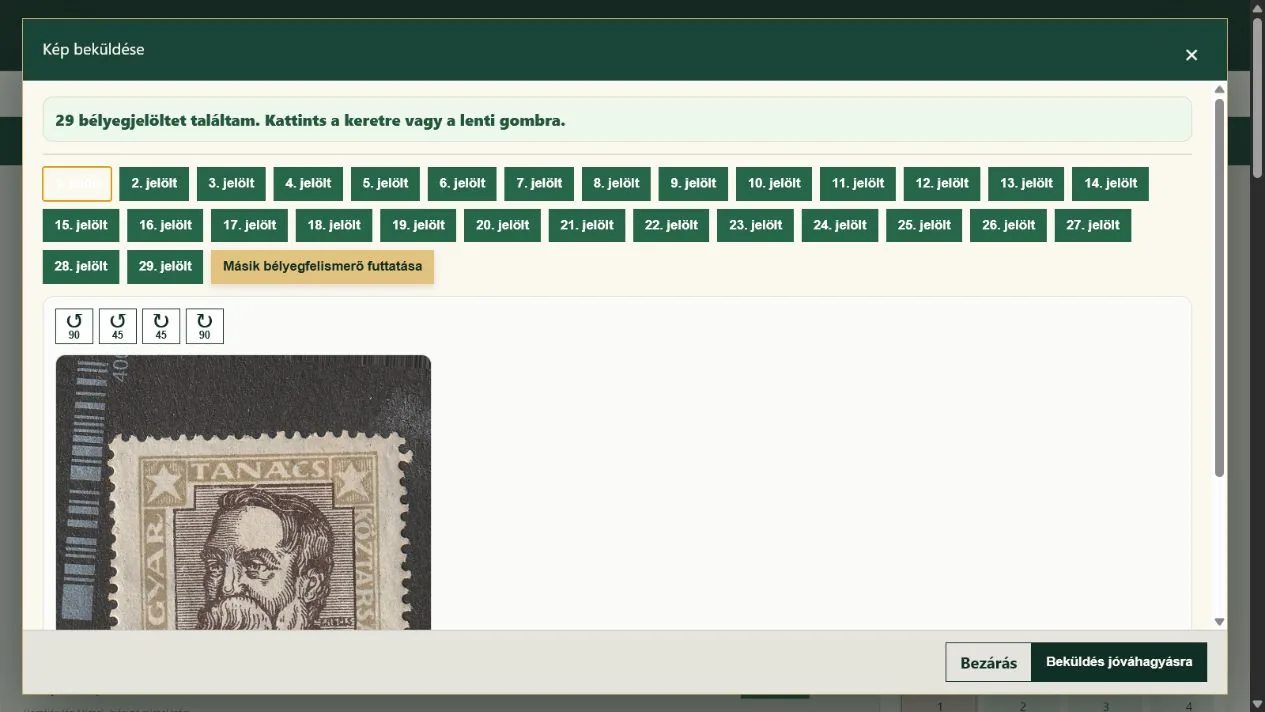
You do not need to crop stamps individually beforehand. You can upload a complete album page or an image containing several stamps: the system detects and outlines the individual stamps, then creates a cropped preview of the selected item.
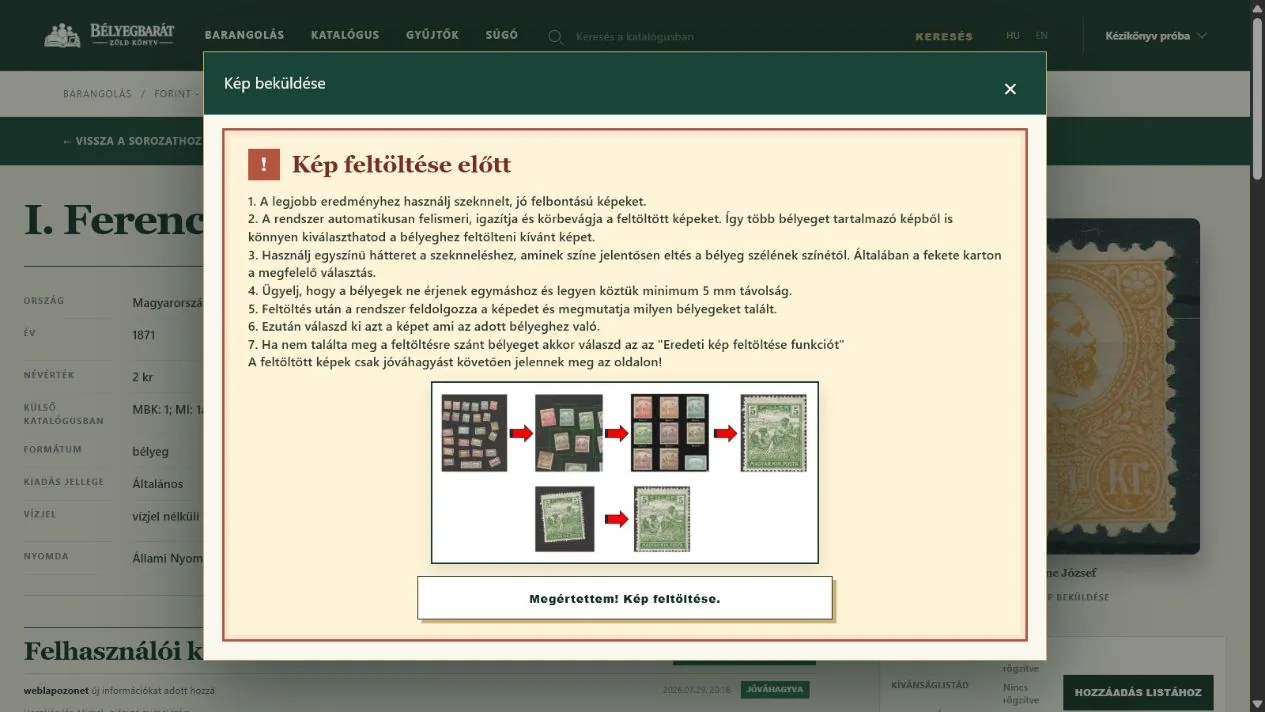
The new image-submission location. A separate button starts image submission in the User suggestions and additions section of the stamp page.
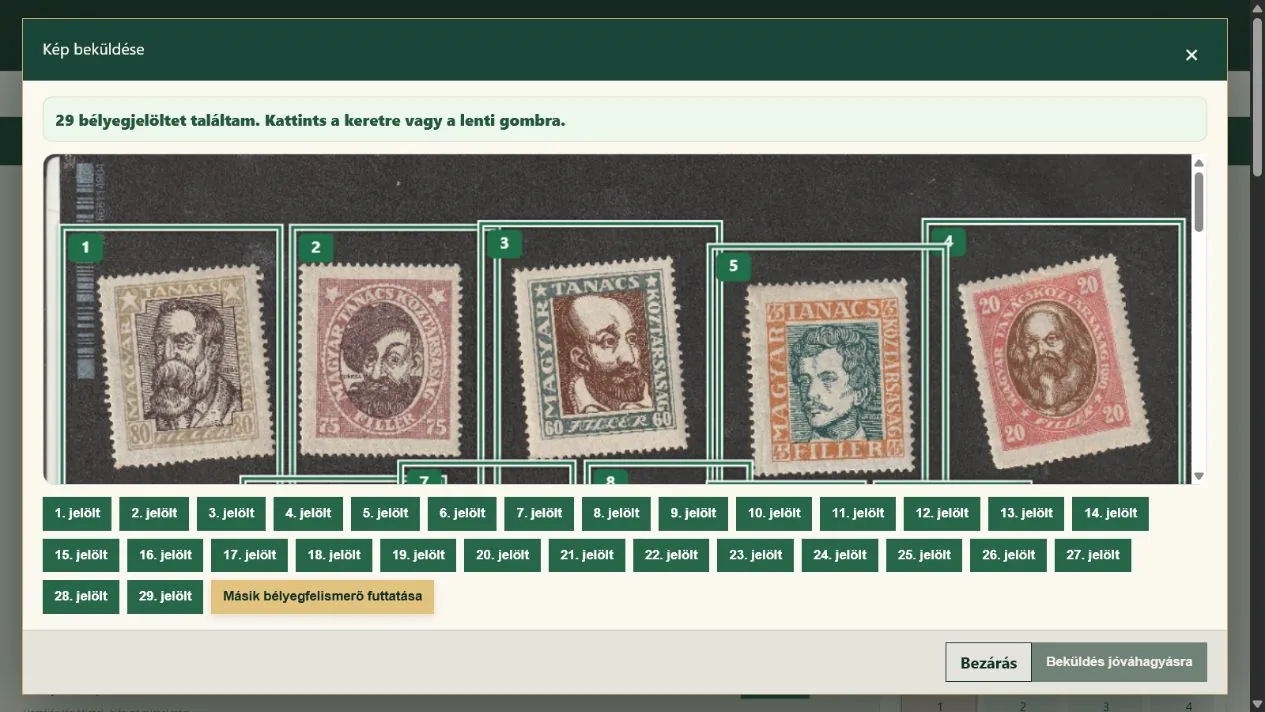
1. Olvasd el a rövid útmutatót. A fekete, egyszínű háttér és az egymástól elkülönülő bélyegek adják a legjobb eredményt.2. Válassz a felismert bélyegek közül. A példában egyetlen albumoldalon 29 candidateet talált a rendszer.3. Ellenőrizd a kivágást. Szükség esetén forgasd el az előnézetet, majd küldd be jóváhagyásra.
Open the relevant stamp or variant page. On a stamp page, find the button in the community section; on a variant page, look directly below the image. Click Kép beküldése or Jobb kép beküldése gombra.
Choose a sharp, high-resolution image. It may contain several stamps as long as they do not touch and are clearly separated from the background.
Click the appropriate numbered frame or its candidate gombra.
Check the automatic crop in the preview. Use the rotation buttons to adjust it in 45- or 90-degree steps.
Submit the image. The current catalogue image is replaced only after approval. If the stamp was not detected, try the alternative detector or, as a last resort, submit the original image.
ImportantSubmit only your own image or one you are legally entitled to use. Remove personal data, watermarks and distracting backgrounds.
08
Katalógusadatok
Data corrections, new variants and printing errors
Correct or complete existing data
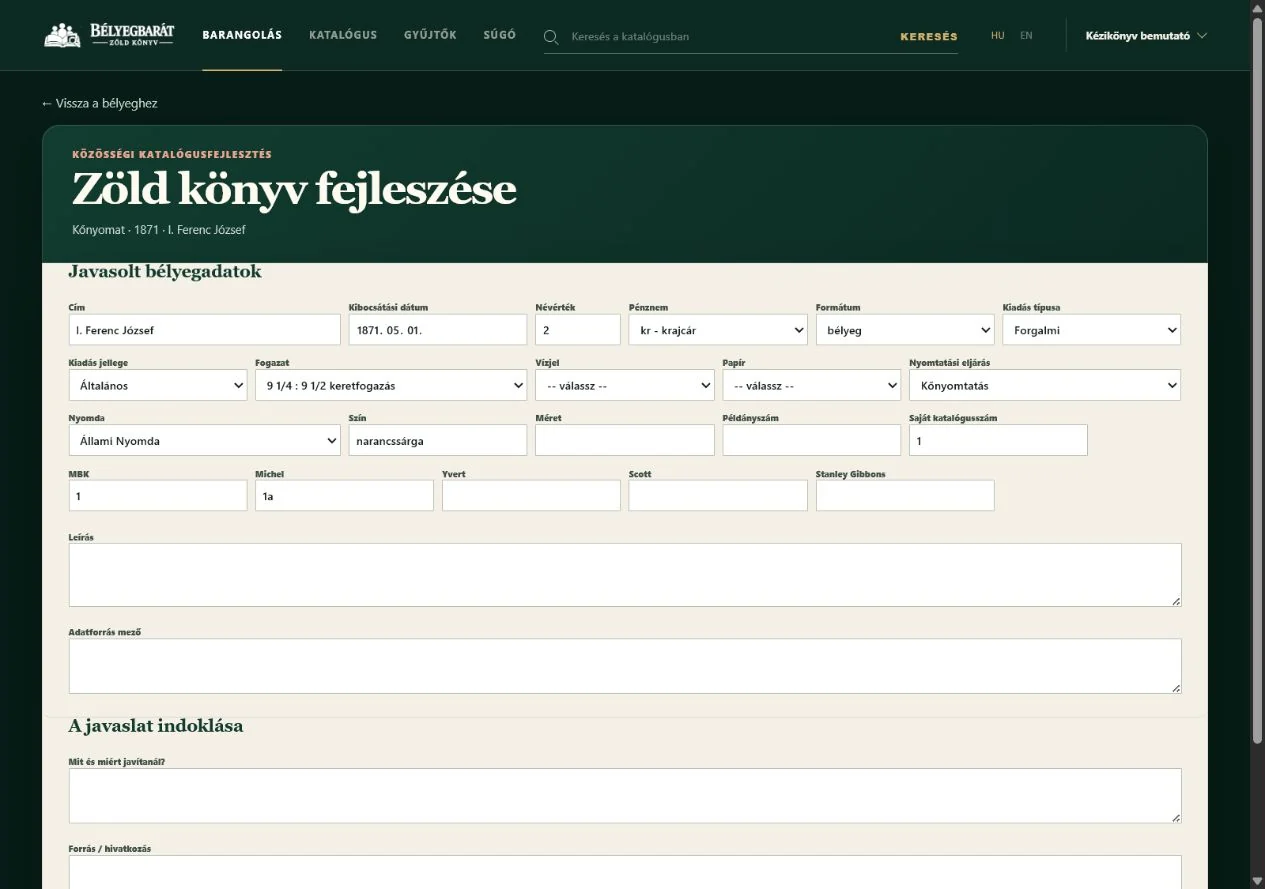
The form displays the current data. Change only the field that needs correcting; point values can also be completed or corrected here.
Select the relevant stamp or variant, then open Correct existing data or kiegészítése űrlapot.
Change only fields that are incorrect or incomplete. The form highlights changed fields.
A point values enter the correct value for the relevant condition. You do not need to complete every point field when only one value changes.
Briefly explain what you would change and why, and provide a verifiable source when possible.
Submit the proposal. Public data changes only after review and approval.
Add a new variant or printing error
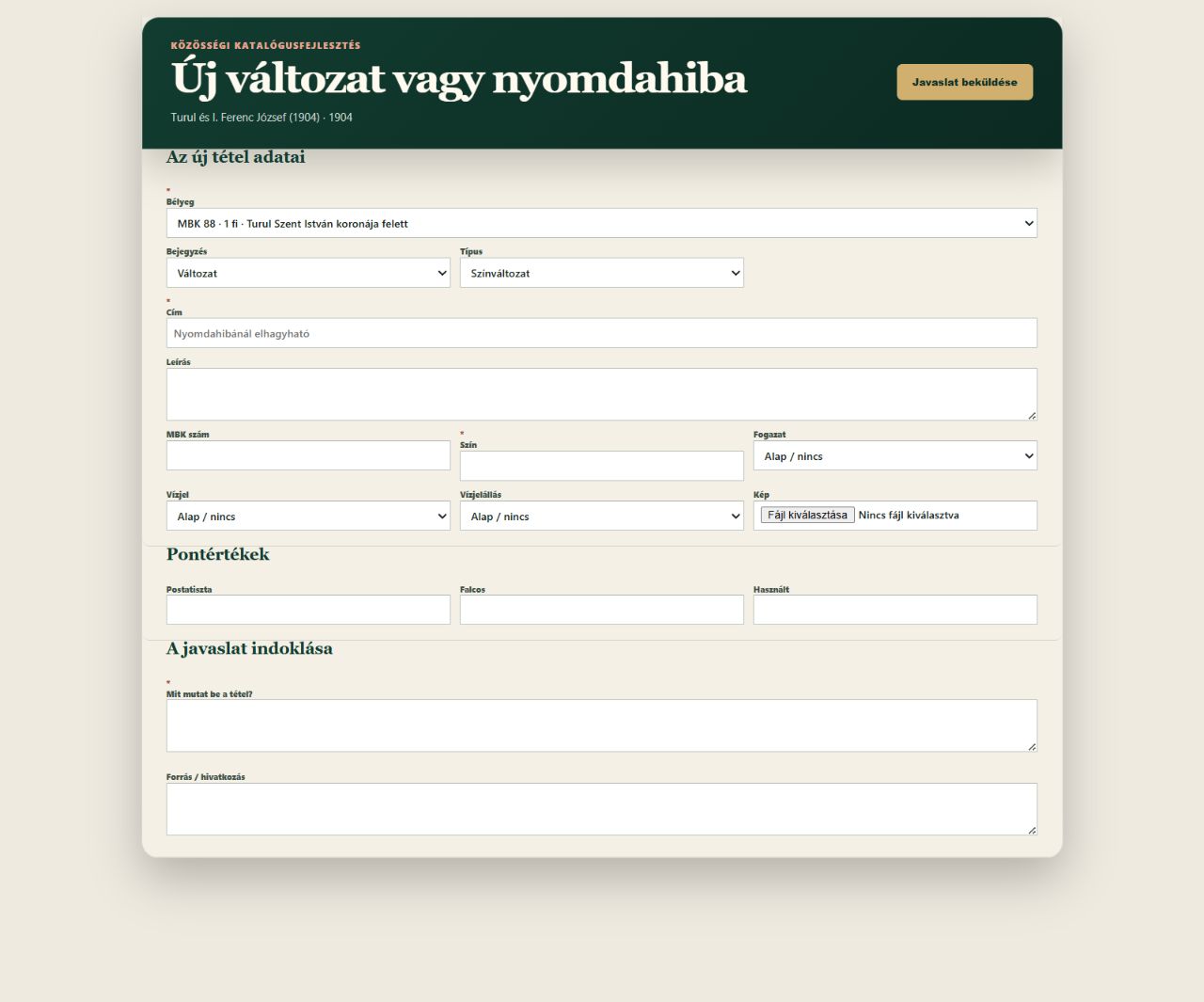
New catalogue item. Fields marked with an asterisk are required; known descriptive data, point values, an image and a source can all be supplied here.
Select the base stamp, then specify whether you are reporting a variant or printing error jelentesz be.
Complete the known identifying details. Choose the error category for a printing error or the variant type for a variant.
Attach an appropriate image if available and enter any known point values.
Explain what makes the item distinct. You may cite a catalogue, specialist literature or a verifiable link.
Example of a useful explanation
„A Michel 2025/26 katalógus 412. oldala szerint a katalógusszám 123A, nem 123. A vízjel és a fogazat megegyezik.”
ImportantA *-gal candidate mezők kötelezők. A nem kötelező adatokat csak akkor töltsd ki, ha biztos or bennük.
09
Community gallery
Present a curiosity
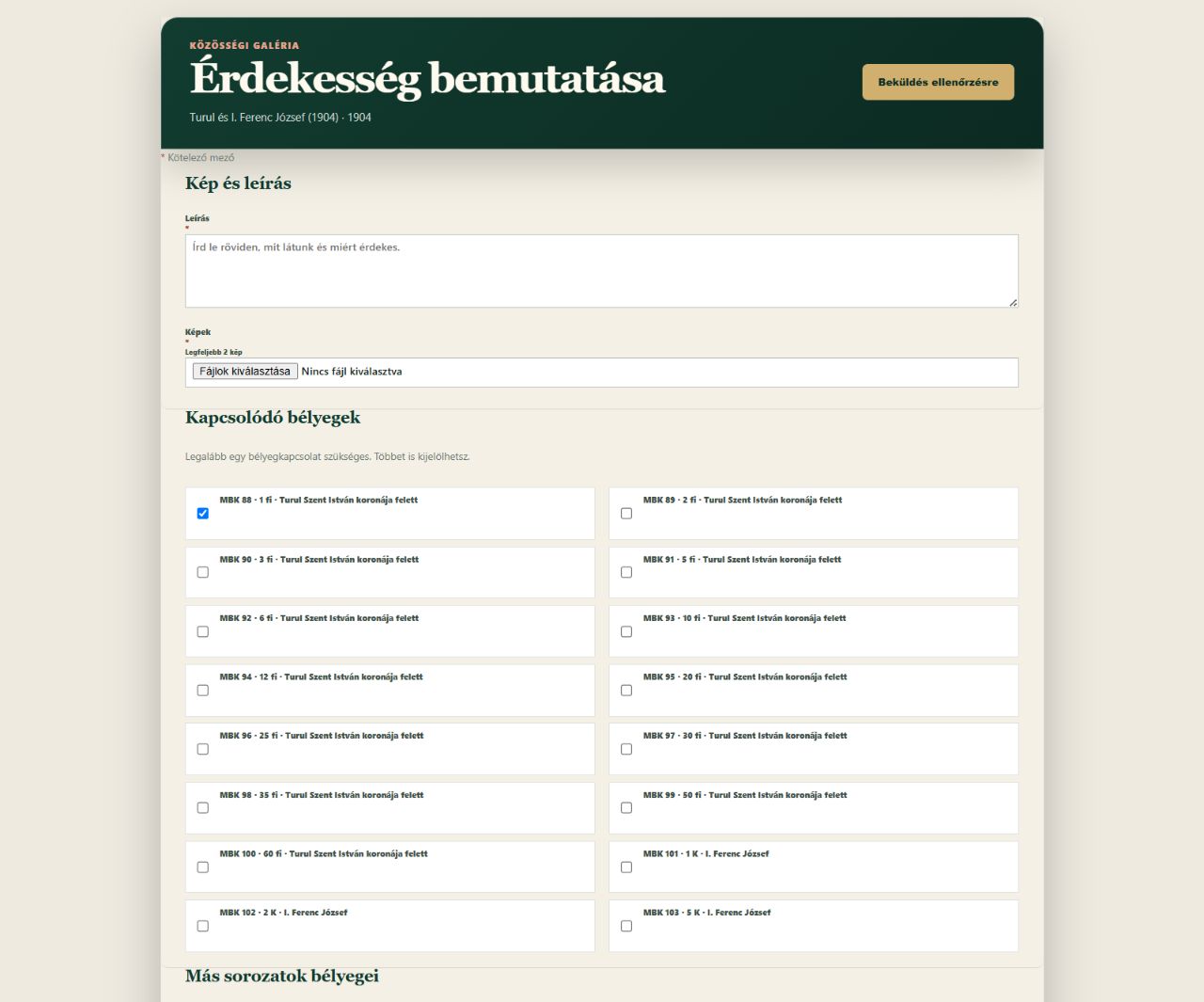
This gallery is for philatelic material that offers more than a simple catalogue image, such as an attractive cover, an interesting connection or mixed franking.
Image, description and links. You can select several stamps from the current series and add further stamps below by MBK number or by selecting an entire series.
Write a short, clear description of what is shown and why it is interesting.
Upload one or two images. A single entry may contain no more than two images.
Select every related stamp in the current series. You may select more than one.
Link stamps from other series by MBK number or by selecting an entire series. Multiple MBK numbers and series may be added.
Submit the entry for review. Once approved, it appears on every linked stamp page and every affected series page.
Linking another seriesSeparate MBK numbers with commas or spaces. Selecting an entire series links the entry to every stamp in that series.
ImportantAt least one linked stamp, a description and one image are required. Upload only images you own or are legally entitled to use.
10
Feedback
Track your submissions
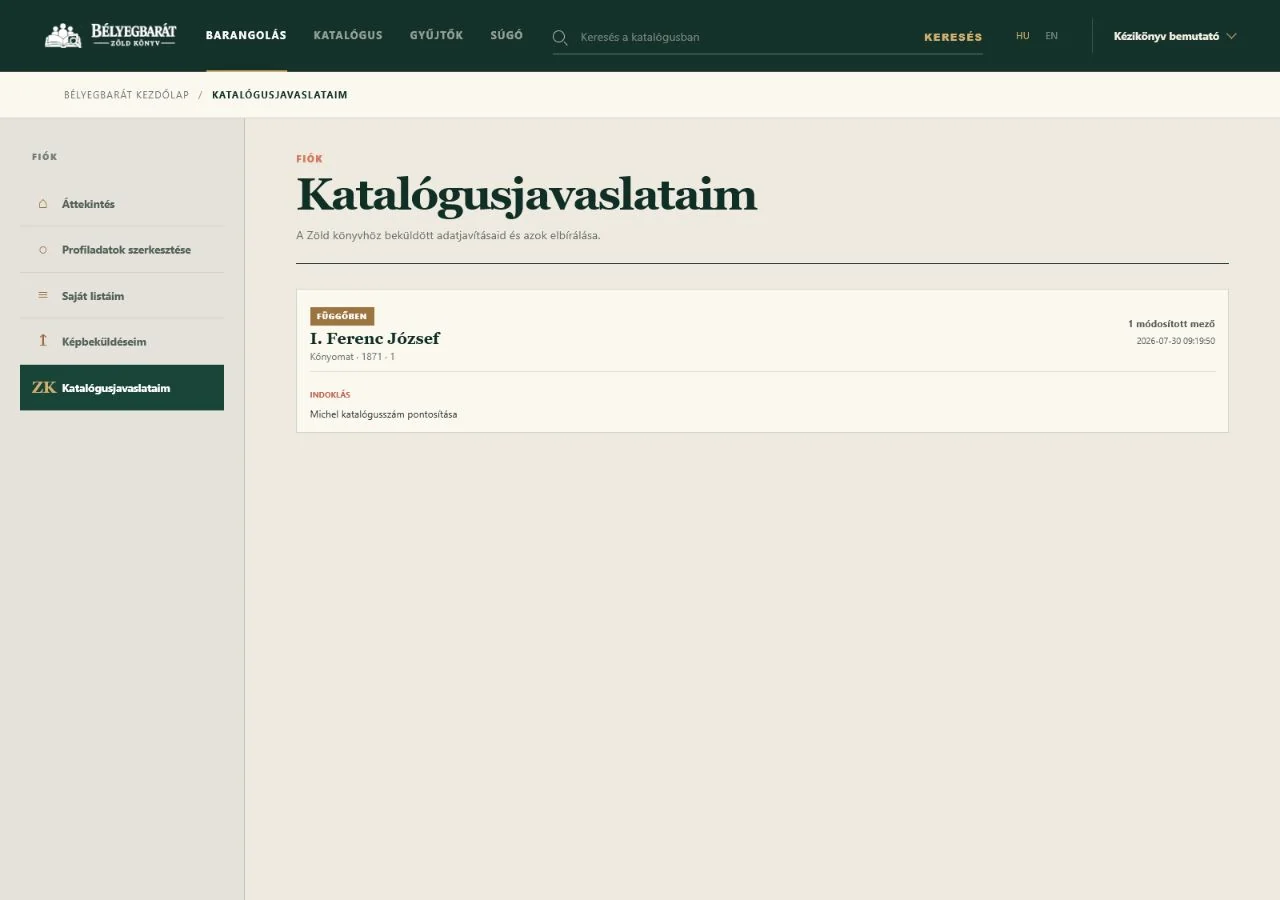
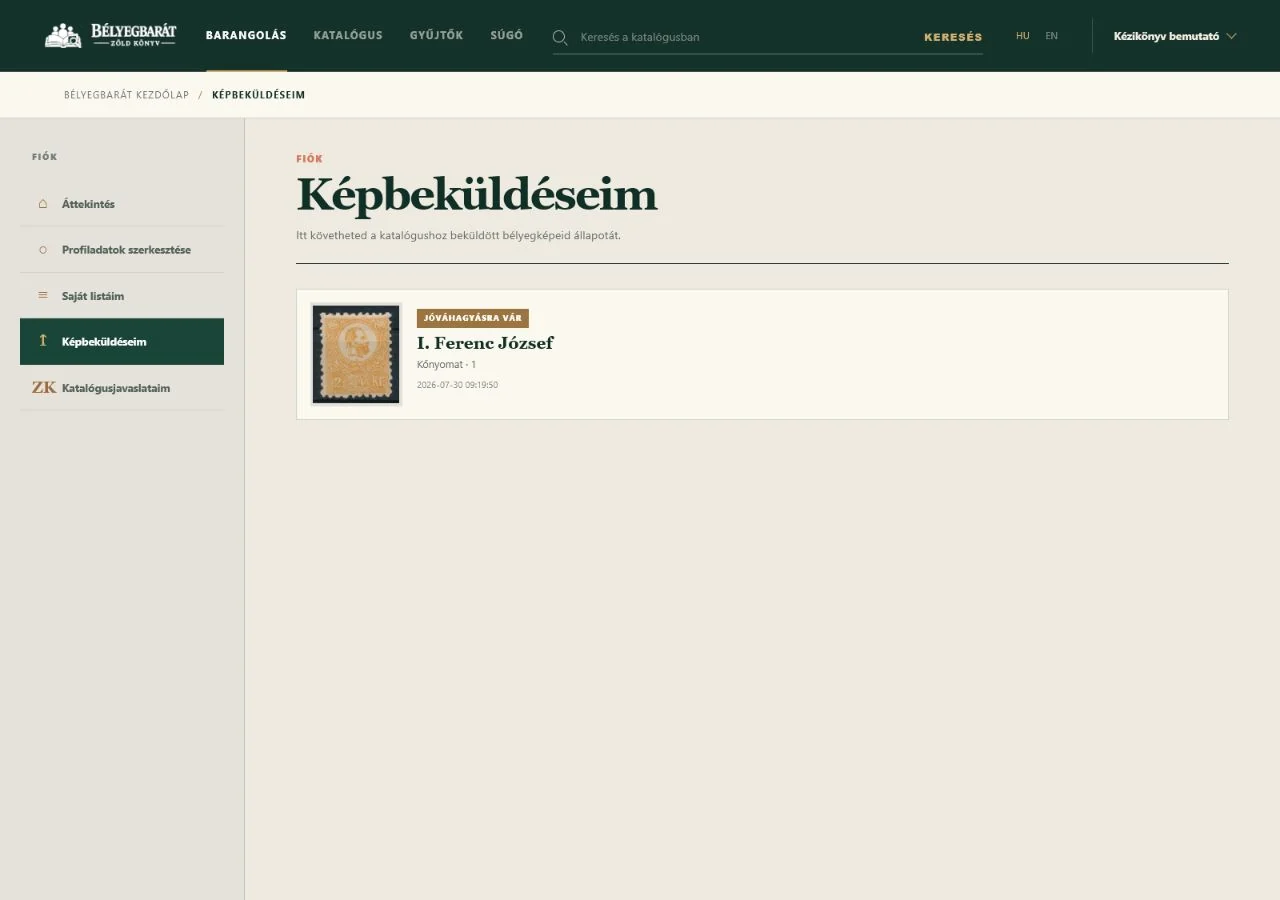
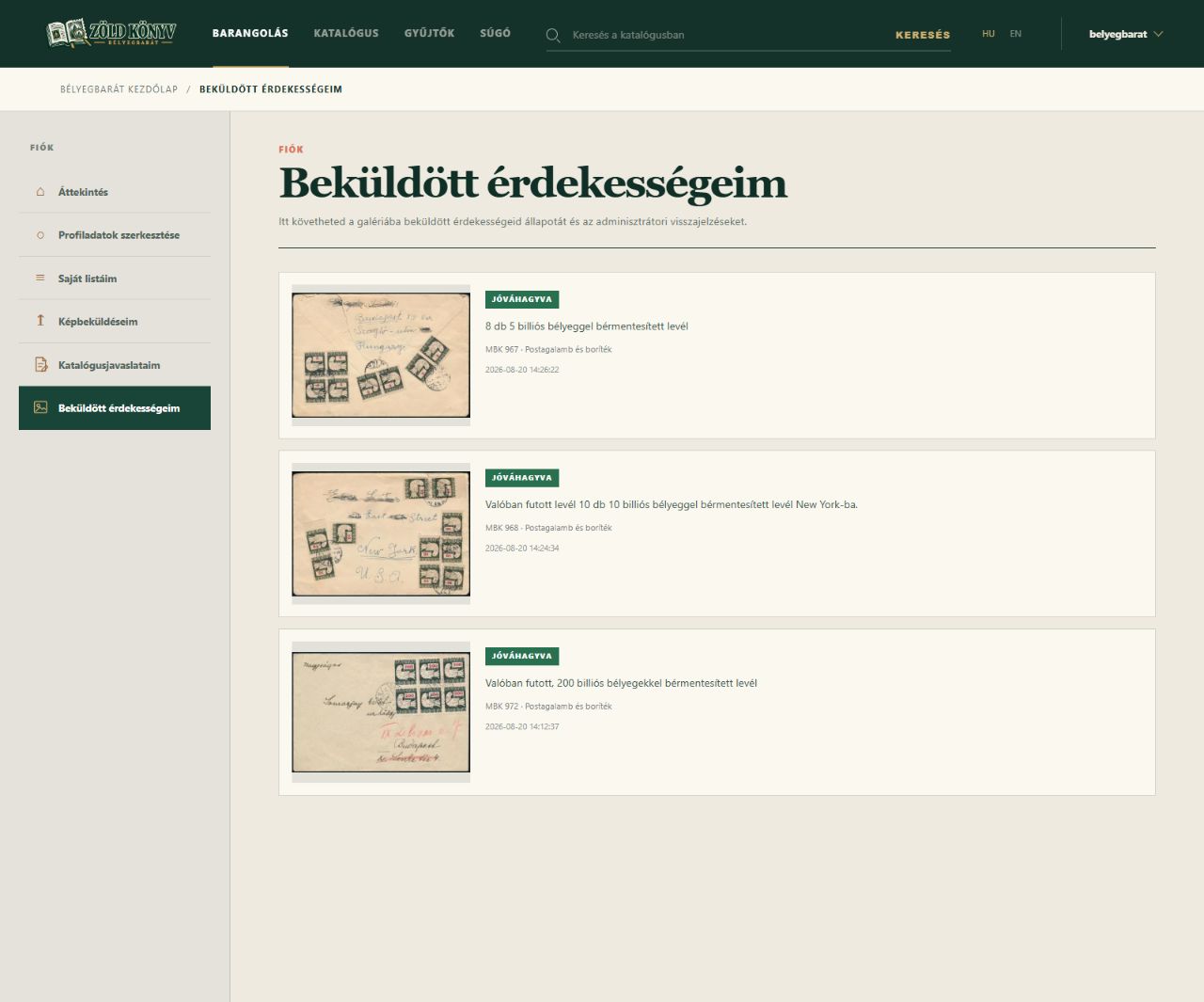
Catalogue proposals. Látható az állapot, a módosított mezők száma, az indoklás és az esetleges válasz.Image submissions. A bélyeg és a beküldött kép mellett az elbírálás állapotát is követheted.Submitted curiosities. A képek, a leírás, a kapcsolódó bélyeg és az elbírálás állapota egy helyen látható.
Catalogue proposals
A Katalógusjavaslataim oldalon látod a módosított mezők számát, a beküldés idejét, az indoklást és az esetleges választ.
Image submissions
A Képbeküldéseim oldalon a beküldött képet, a kapcsolódó bélyeget, az állapotot és az esetleges megjegyzést találod.
Submitted curiosities
A Beküldött érdekességeim oldalon a képeket, a description, a kapcsolódó bélyegeket, a beküldés idejét, az állapotot és az adminisztrátori megjegyzést is látod.
Pending
The submission is awaiting review.
Approved
The submission has been accepted.
Partly approved
Part of the proposal has been accepted.
Rejected
The submission was not accepted; check the explanation.
11
Help
Frequently asked questions
Why can I not find a stamp?
Remove some filters, enable variants or search for a shorter part of the title. Try without a catalogue number or year as well.
Does my proposal change the catalogue immediately?
No. Every correction is reviewed and appears publicly only after approval.
Where can I see what happened to my submission?
Bejelentkezés után a fiókod Katalógusjavaslataim, Képbeküldéseim és Beküldött érdekességeim pontjaiban.
Where does an approved curiosity appear?
On every stamp page and series page linked to the curiosity when it was submitted.
I forgot my password.
Choose the forgotten-password option on the sign-in page and follow the instructions sent by email.
 Log in / Register ↗